# Mailing Labels
> Source: https://support.faithteams.com/mailing-labels | Updated: 2026-08-04T15:43:09Z
You may need to print mailing labels to send out letters to the people at your church. These could be Donor Statements or welcome letters. Below are the steps to create and print mailing labels in Faith Teams.
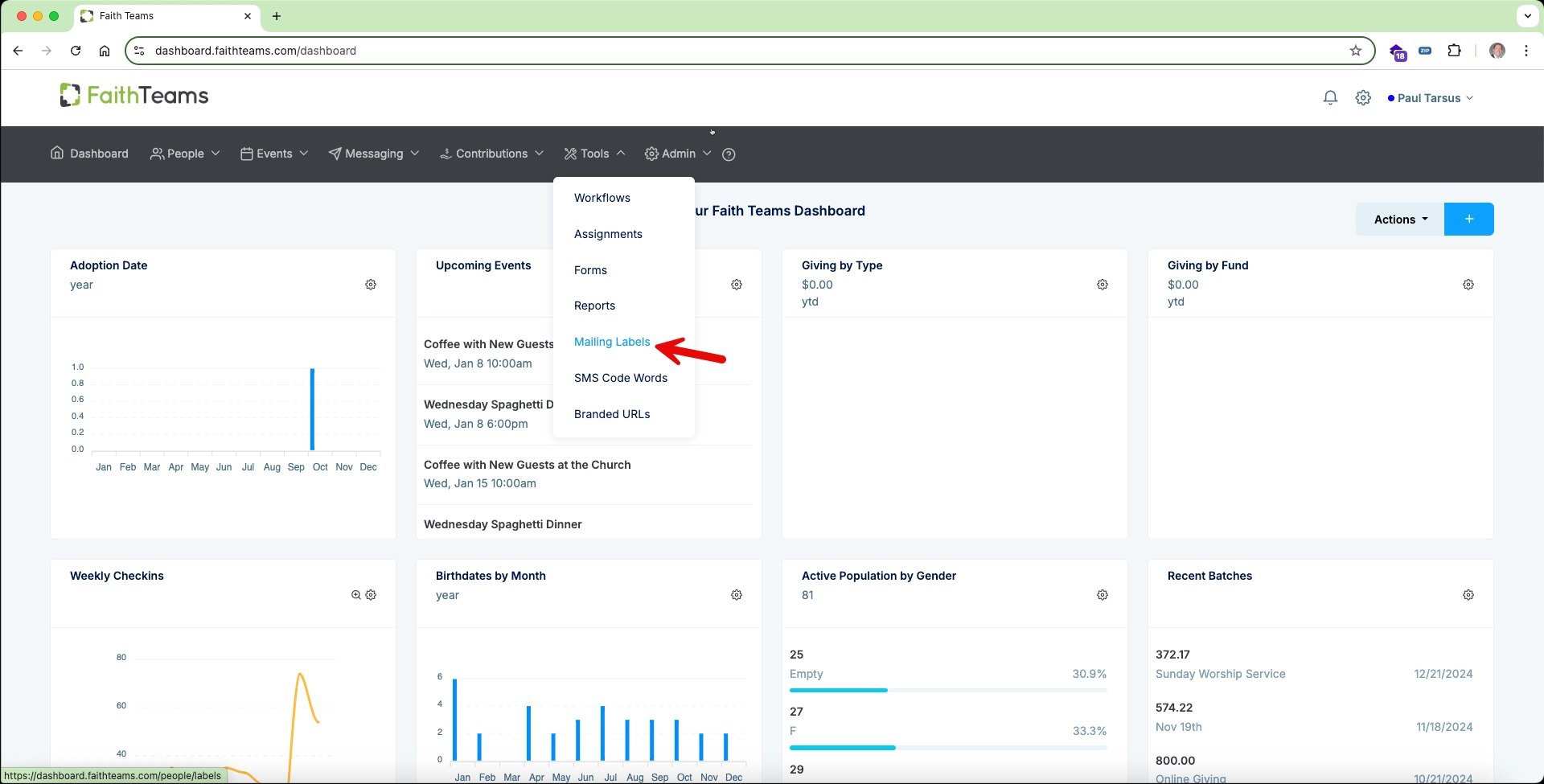
Once you’ve logged in to Faith Teams, click on “Tools” in the menu. In the pull down, click on “Mailing Labels”.
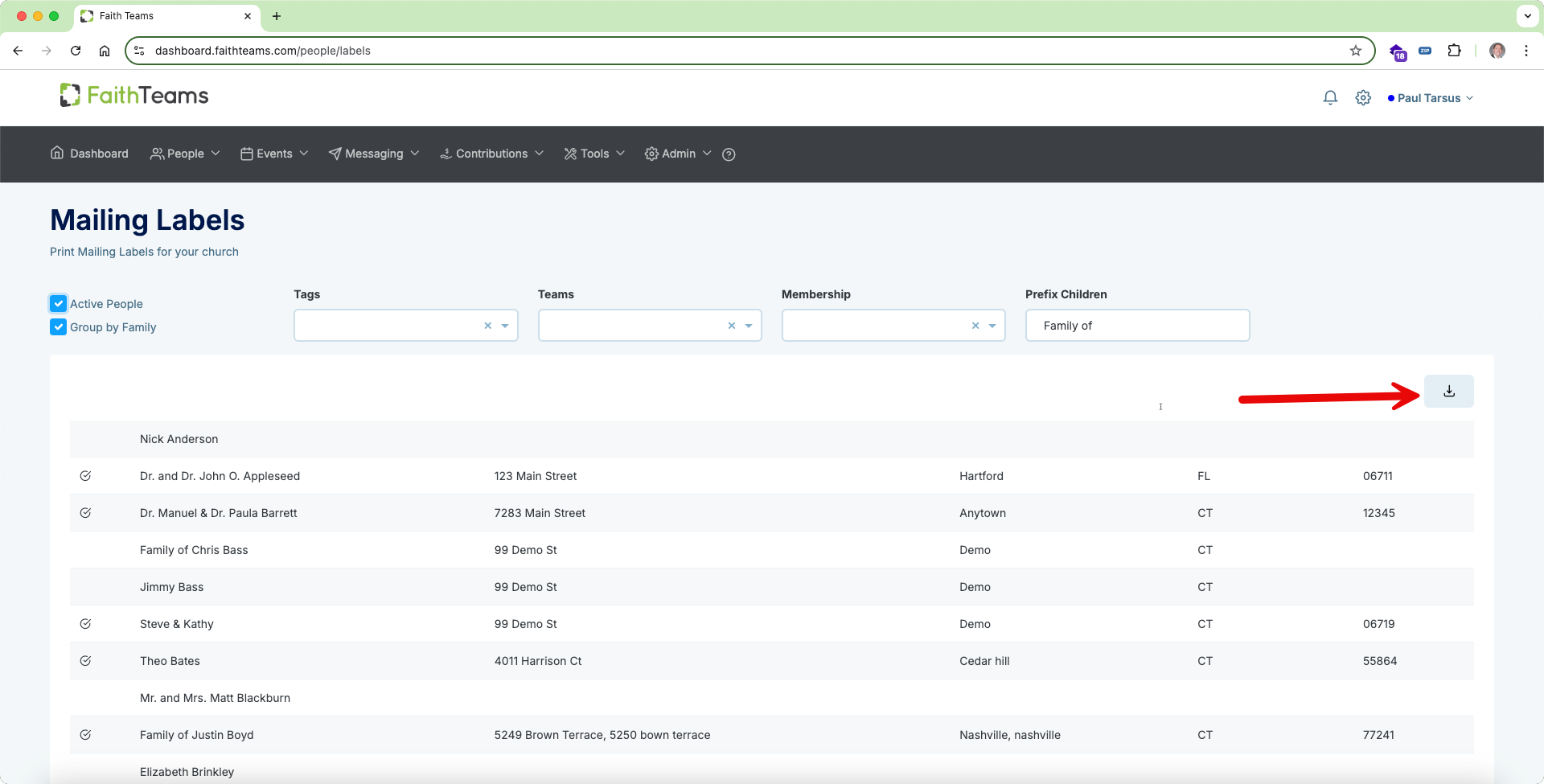
 After clicking on Mailing Labels, you will see the following screen.
 You can now filter who you’d like include in your mailing label document using Tags, Teams and Membership status. Once you have the list you want, you can then download a PDF file of that list.
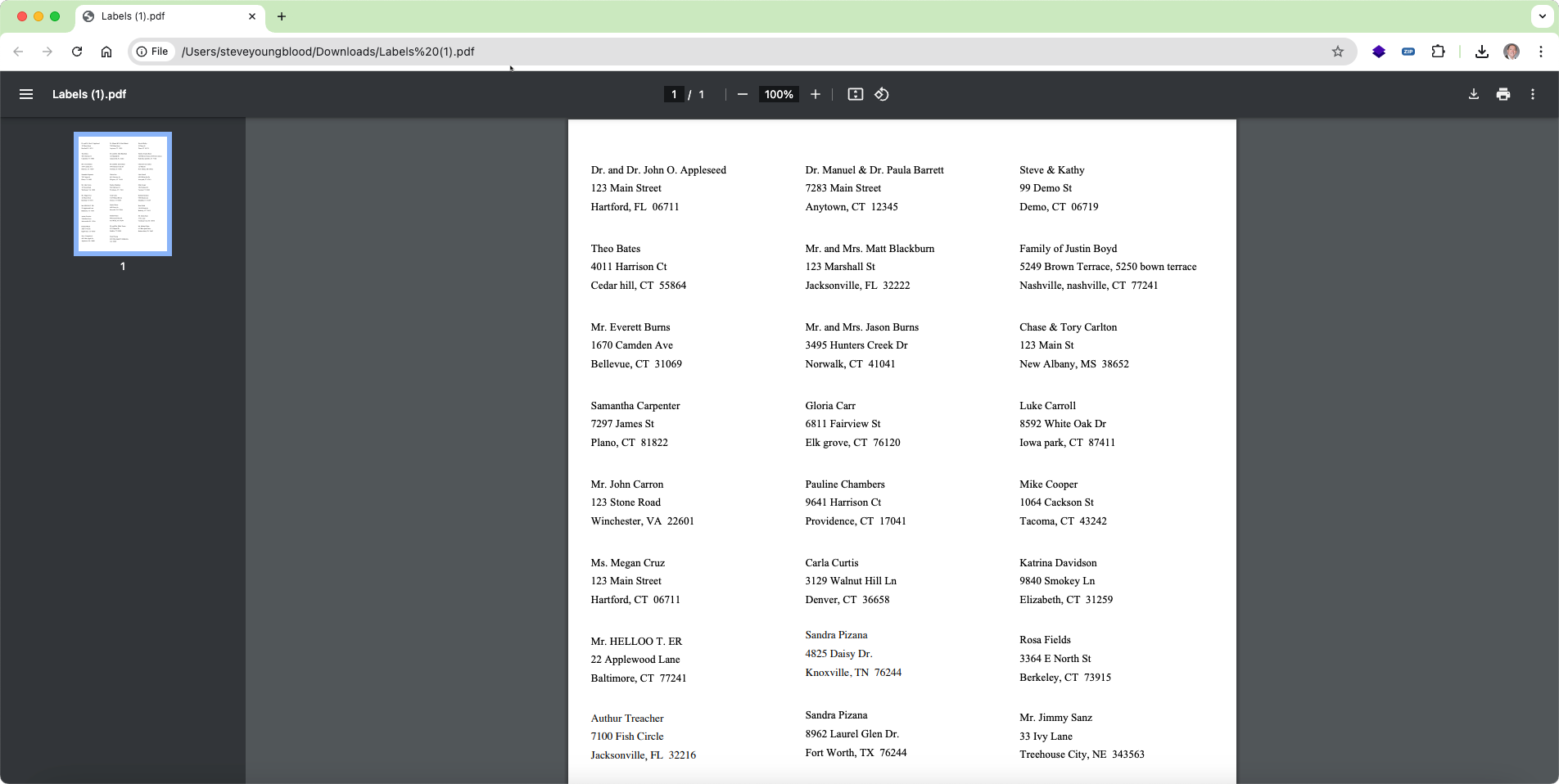
 The resulting PDF file looks as shown below. From here you can print using Avery 5160 labels as the paper type. Here’s a link to those labels on Amazon: .