
Overview
Community – Live Streaming
Live Streaming lets you broadcast your service to your Faith Teams Community site, where people can watch and give at the same time. Anyone with the link can watch. No account or login is needed.
Live Streaming is included in your Faith Teams subscription, and it is managed by users with the Admin role.
What You Can Do:
- Schedule a service ahead of time, so people see a countdown to it on your watch page.
- Go live from the camera on a laptop or phone, with no software to install.
- Go live from streaming software or an encoder, such as OBS, vMix, ATEM or Mevo.
- Send the same broadcast to YouTube or Facebook at the same time.
- Send a notice to your people when the service goes live.
- Receive gifts during the service. Every gift is a normal online contribution.
- Keep a library of Past services on your Community site.
Getting Started:
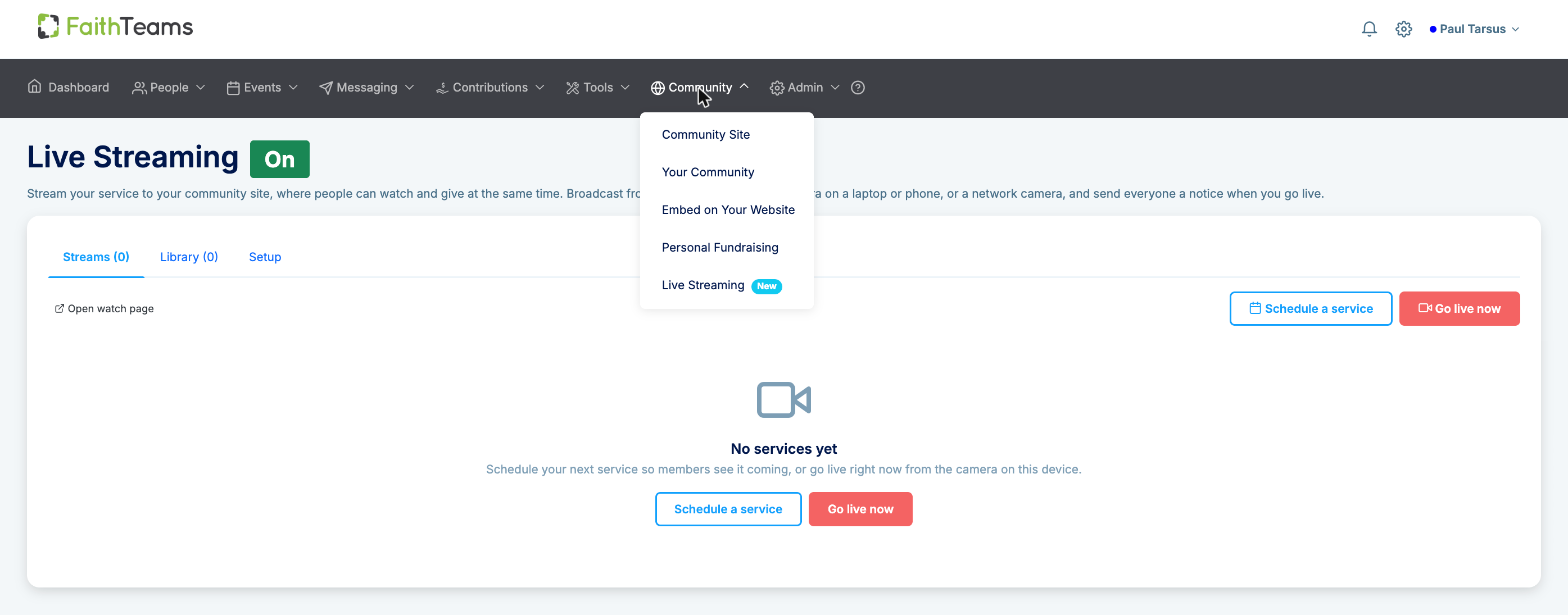
- Go to “Community” in the menu, and click “Live Streaming”.
- Turn Live Streaming on and pick a fund for gifts. See this article: Community – Setting Up Live Streaming
- Click “Schedule a service”, or click “Go live now” to try it with the camera on your device.
Where People Watch:
Your watch page is on your Community site at yourchurch.faithteams.com/live, where “yourchurch” is your subdomain. It shows the live service, or a countdown to the next one. People can also watch from a “Live Stream” block on your Community pages, or from a player embedded in your own website.
NOTE*: Your church needs a Community subdomain before you can use Live Streaming. If you do not have one yet, please refer to this article: Community – Activate*# Community – Live Streaming
Live Streaming lets you broadcast your service to your Faith Teams Community site, where people can watch and give at the same time. Anyone with the link can watch. No account or login is needed.
Live Streaming is included in your Faith Teams subscription, and it is managed by users with the Admin role.
What You Can Do:
- Schedule a service ahead of time, so people see a countdown to it on your watch page.
- Go live from the camera on a laptop or phone, with no software to install.
- Go live from streaming software or an encoder, such as OBS, vMix, ATEM or Mevo.
- Send the same broadcast to YouTube or Facebook at the same time.
- Send a notice to your people when the service goes live.
- Receive gifts during the service. Every gift is a normal online contribution.
- Keep a library of Past services on your Community site.
Getting Started:
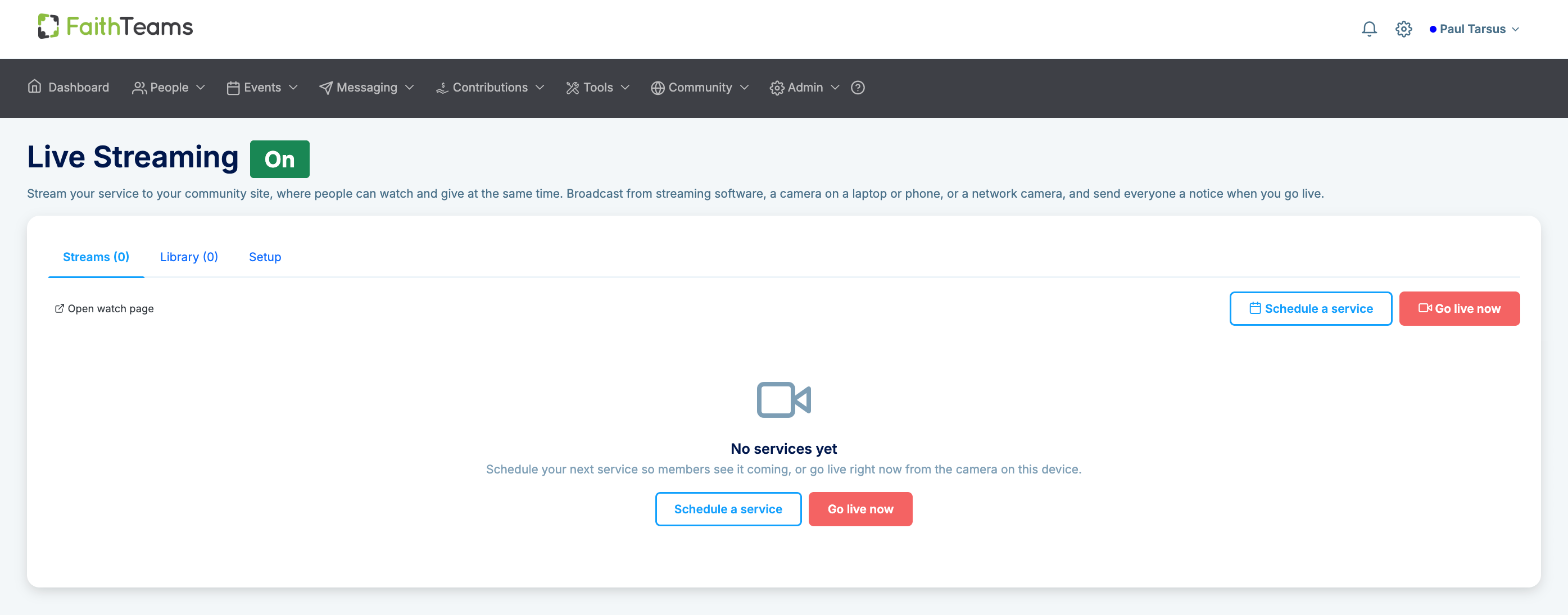
- Go to “Community” in the menu, and click “Live Streaming”.
- Turn Live Streaming on and pick a fund for gifts. See this article: Community – Setting Up Live Streaming
- Click “Schedule a service”, or click “Go live now” to try it with the camera on your device.
Where People Watch:
Your watch page is on your Community site at yourchurch.faithteams.com/live, where “yourchurch” is your subdomain. It shows the live service, or a countdown to the next one. People can also watch from a “Live Stream” block on your Community pages, or from a player embedded in your own website.
NOTE*: Your church needs a Community subdomain before you can use Live Streaming. If you do not have one yet, please refer to this article: Community – Activate*